
PreachSermon


Scroll Down For Help Getting Started
- PreachSermon presents your sermon manuscript or notes beautifully on the iPad in autoscroll or page mode.
- Import DocX / RTF files or paste your sermon. See Getting Started below.
- Use the text editor to make any last minute changes. See Text Editor Mode below.
- In Preach mode, easily increase / decrease font size, spacing, and autoscroll speed on the fly in either landscape or portrait. See Preach Mode below.
- Use Autoscroll Mode (tap start/stop; manual scroll) or Page Mode (page-by-page; tap forward, tap back (left edge); manual scroll).
- Use your Apple Pencil to quickly annotate or make quick corrections on the fly (my favorite and most used feature). I've scribbled in reminders about last minute announcements that were sprung on me minutes before service.
- Go back into text edit mode to type any major changes if needed (i.e a closing prayer you were suddenly inspired with).
- Export your edited sermon to DocX for safekeeping.
- Archive your sermons in the app for later retrieval.
- You can even write your whole sermon in editor mode and then preach it (I've done it).
- Very low power consumption. Preach a whole sermon using only 1% of battery. *Heavy Apple Pencil annotating may consume more energy.
- No more fighting with other clunky presenter apps that have no clue how preachers preach and adjust in the last minute, or need to conserve battery for a full day of preaching multiple services.
- Compatibility: iPad Recommended / iPhone (not fully optimized). Mac Not Supported. Minimum iOS 17.6
Try it out and suggest new features! I listen. I'm a pastor, like you.
Getting Started
- When you open PreachSermon for the first time, you'll start with a blank view titled PreachSermon Library.
- This is where you paste or import (DocX/ RTF) your text into PreachSermon.
- All of your imported / newly created sermons will show up in this view.
Navigating the app:
- PreachSermon uses a navigation hierarchy like this:
Library -> Text Editor -> Preach Mode
- Tap a sermon in the Library to get to Text Editor Mode.
- Tap the big green "Preach" button in Text Editor to get to Preach Mode.
- Tap the < Chevron symbol in the upper left to go back one view.


First start: notice the upper menu bar with these buttons:


(?)= Help.
(i) = About
+ = Create New Sermon

= Import New Sermon (DocX / RTF)
The Create and Import Buttons are where you'll get your text into PreachSermon.
PreachSermon has three options to enter your text.
Option 1
- Tap + in the upper menu bar to create a new sermon.
- In the box, add your sermon title and paste your sermon. Tap Save.
- Your sermon title with the first few lines will show.
- Tap your sermon to enter Text Editor Mode for final review or editing before preaching in Preach Mode.
Option 2
- Tap + in the upper menu bar to create a new sermon (like option 1).
- Add your sermon title and some text in the box. Tap save.
- Tap the sermon to enter Text Editor Mode.
- In the Text Editor, paste or type your sermon.
- PreachSermon safely autosaves your text as you type.
Option 3
- Tap import (the box with down arrow) in the upper menu bar to import your sermon (DocX or RTF files only).
- To import your DocX or RTF file, navigate in the file picker to the folder and file on your iPad or in iCloud.
- Tap your file to import.
- If your file is greyed out or cannot be selected, check the file format. PreachSermon can only import Microsoft Office DocX or RTF files.
- If you use Apple Pages, open your file in Pages and tap export (or export to send). Export as Word or RTF and save it where you can find it. Start the PreachSermon import process from the beginning, navigating to your newly exported file.
- After successful import, your sermon will show up in the sermon list, ready for review in Text Editor Mode (see image below).
Sermon Library View


Deleting / Archiving/ Unarchiving Your Preached Sermons
- Slide the sermon to the left. The red "Delete" and blue "Preached" buttons will show.
- WARNING: Tapping delete will permanently delete your sermon!
- Sliding further left will mark your sermon "Preached" and will archive it in the "Preached Sermons" menu.
- In Preached Sermons, slide the sermon to the left reveals "Delete" and "Preach" buttons.
- Slide further to unarchive (move to preach) the sermon.
- Any archived sermon may be sent to Text Editor mode by tapping it.
Text Editor Mode


- Tap the sermon to enter Text Editor Mode.
- If you're ready to preach, hit the big green PREACH button to go to full screen Preach Mode. Preach it well, my friend!
- Text Editor Mode is for you to review, edit, or export your edited text to DocX file.
- To edit, tap anywhere to bring up the cursor and keyboard.
- You can also use Text Editor Mode as a simple text editor to write your sermon text.
- Helpful sermon data is provided under the title (word count, approx. preaching time, date of last edit.
- Tap the < button at the top to go back to Sermon Library.
Preach Mode

*Tap the big green PREACH button to enter into fullscreen PREACH Mode*
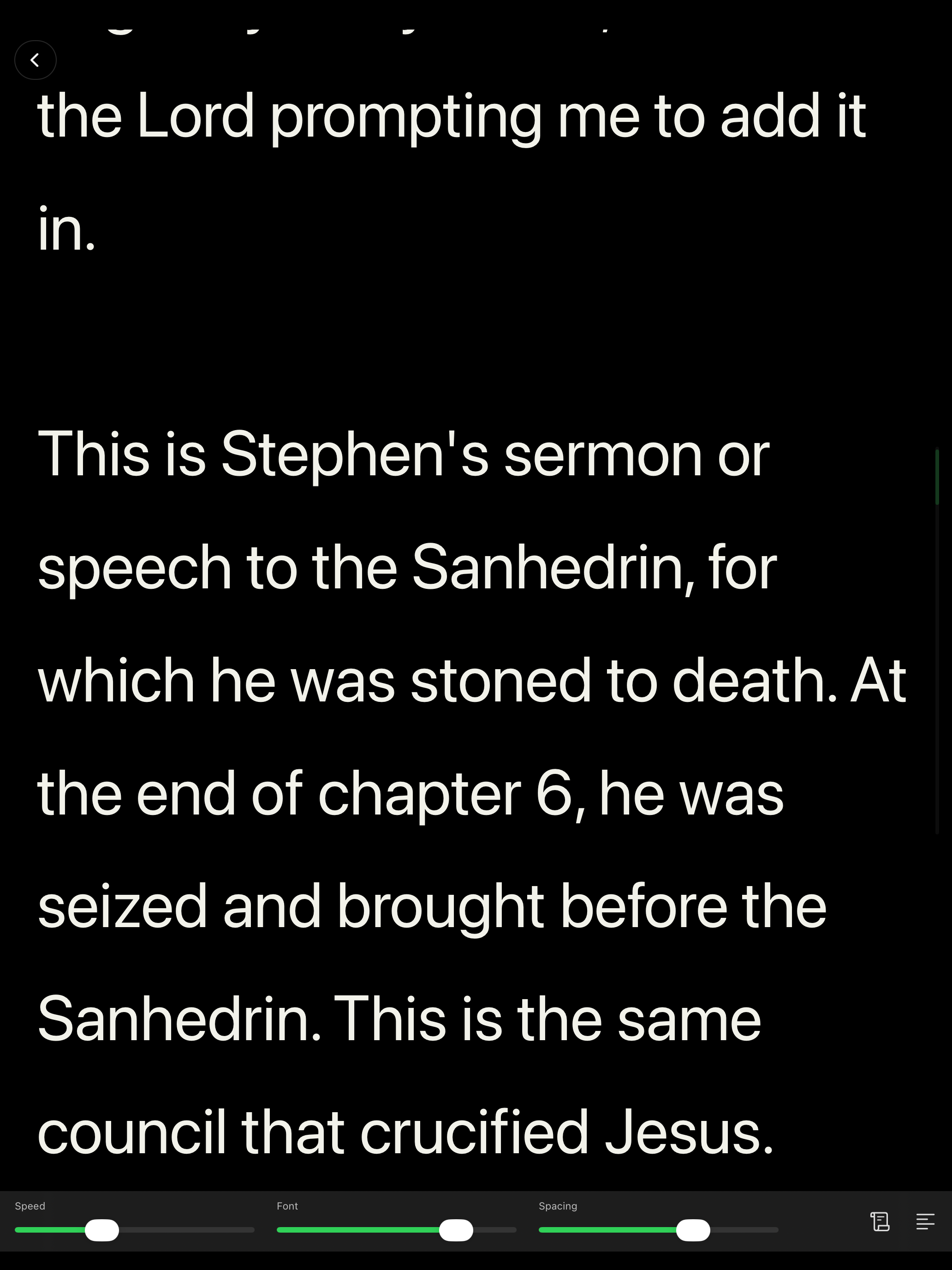
Using the Control Strip at the bottom of the screen:
- Adjust your speed, font size, and line spacing.
- Choose autoscroll mode or page mode (right toggle).
- Center or left justify your text (far right toggle).
Scroll Modes:
AUT OSCROLL MODE
- Toggle to Autoscroll Mode by tapping the Scroll Mode button on the Control Strip.
- Tap the screen to begin autoscroll at the selected speed.
- Tap to stop. Tap to resume.
- The Control Strip autohides in Autoscroll Mode on tap (begins autoscroll).
- Tap anywhere on the screen to show the Control Strip (stops autoscroll).
PA GE MODE
- Toggle to Page Mode by tapping the Scroll Mode button on the Control Strip.
- Tap the screen in the center or right side to advance one page.
- Tap the screen on the left side to go back one page.
- The Control Strip autohides in Page Mode after 1 second.
- Tap Hold anywhere on the screen to show the Control Strip in Page Mode.
- Next tap autohides the Control Strip.
MANUAL SCROLL:
- The screen can be manually dragged up or down in either mode.
Return to Text Editor Mode:
Go back to Text Editor Mode by tapping the < button in the upper left (Control Strip must be visible for the < button to show).
Apple Pencil Annotations in PREACH Mode
- Use your Apple Pencil to annotate in PREACH Mode.
- Be sure to annotate in the iPad screen orientation that you will preach in (Landscape / Portrait).
- Apple Pencil Annotations are locked only to the screen orientation (Landscape or Portrait) at creation. Annotations created in the Portrait orientation will not align in Landscape and vice versa.
- Tap Apple Pencil on the screen to show Pencil controls (Stroke; Highlight; Erase; Undo; Color Picker; Stroke Weight; Clear All).
- Squeeze Apple Pencil to undo/redo (Control Strip must be hidden).
Preach it well, my friend!